Set Up Amazon SES for Scalable Email Delivery
Amazon SES delivers reliable, low-cost, and high-volume email sending powered by AWS infrastructure. Connect it to WordPress with Pro Mail SMTP and start delivering emails at scale in just a few minutes.
INTEGRATE AMAZON SES FOR FREE
How to Set Up Pro Mail SMTP with Amazon SES
Combining Pro Mail SMTP with Amazon SES (Simple Email Service) is one of the most cost-effective and scalable ways to handle outgoing emails from your WordPress site. Backed by Amazon Web Services, this setup ensures excellent deliverability, advanced authentication, and the ability to send anywhere from a handful to millions of emails per month.
You can rely on this combination to power contact forms, WooCommerce order confirmations, password resets, newsletters, or any other transactional and marketing email — without worrying about your hosting provider’s mail server limitations or unreliable PHP mail.
In this guide, you’ll learn how to create and configure your Amazon SES account, verify your sending domain, generate the SMTP credentials, and connect everything to WordPress through the Pro Mail SMTP plugin.
What is Amazon SES?

Amazon Simple Email Service (Amazon SES) is a cloud-based email sending service developed by Amazon Web Services (AWS). It’s designed to handle both transactional and marketing emails at virtually any scale — from a few messages a day to millions per hour — while keeping costs extremely low.
Originally built to power Amazon’s own internal email infrastructure, SES has become one of the most trusted email-sending platforms among developers, agencies, and enterprises. It supports modern email authentication standards (SPF, DKIM, DMARC), provides detailed sending statistics, bounce and complaint tracking, and gives you full control over your sender reputation.
Setting it up requires a few extra steps compared to other providers, but once connected to Pro Mail SMTP, you’ll benefit from one of the most robust and affordable email delivery systems on the market.
Key Features:
Cost: Amazon SES offers one of the most generous pricing models in the industry. You pay only $0.10 per 1,000 emails sent, with no monthly fee. If you send from an Amazon EC2 instance, the first 62,000 emails per month are free. For most small to medium WordPress sites, this means email delivery costs are practically negligible.
From Email Requirements: to send emails through Amazon SES, you must verify either an individual email address or — strongly recommended — your entire sending domain (e.g. yourdomain.com). Domain verification via DNS records (SPF and DKIM) is essential to maximize deliverability and protect your sender reputation.
Sandbox Mode: when you first sign up, your account is placed in a sandbox environment, meaning you can only send to verified email addresses and are limited to 200 emails per day. To unlock full sending capabilities, you’ll need to request production access from AWS — a quick approval process we’ll cover in Step 3.
Bottom Line: Amazon SES is the go-to solution for WordPress users who need maximum deliverability and scalability at the lowest possible cost. While the initial setup is a bit more technical than other SMTP providers, the long-term benefits in price, performance, and reliability are unmatched.
Step 1: Create a Amazon SES Account
To integrate Pro Mail SMTP with Amazon SES, you first need to create an Amazon Web Services (AWS) account, which gives you access to the SES console.
Setting Up Your Amazon AWS Account
Before moving forward, you’ll need to register for a free AWS account on Amazon Web Services.
While the account itself is free and this integration doesn’t rely on any paid services, AWS still requires a valid credit card during signup as part of its standard verification process.
Once registered, AWS will attempt to identify your region automatically based on your billing address. If it can’t determine your exact location, you’ll be prompted to select the closest available region manually.
Creating an IAM User
After successfully setting up your AWS account, the following step involves creating an IAM User. This account will generate the access credentials you’ll need to authenticate Pro Mail SMTP with Amazon SES later in the process.
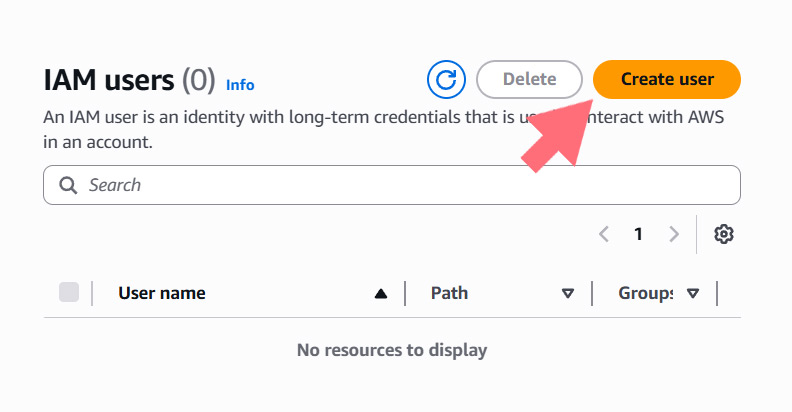
- To begin, navigate to the IAM Users dashboard inside your AWS Console.
- Once the page loads, locate and click the Create user button to start the configuration.
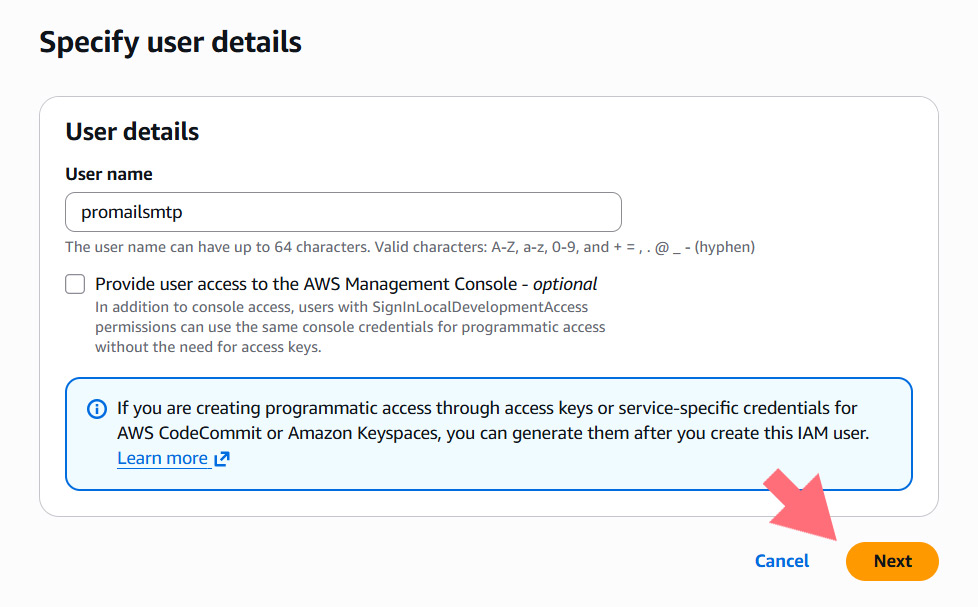
- You’ll now be asked to configure the new user. In the User name field, you’re free to choose any name you like — but to keep things organized, we suggest following this naming convention: yourdomain_promailsmtp .
For instance, if your website is example.com, a clear and descriptive username would be examplecom_promailsmtp. Adopting this format from the start makes it much easier to identify which IAM user belongs to which site, especially if you later need to manage multiple installations or update existing credentials. - When you’re ready, click the Next button to proceed.
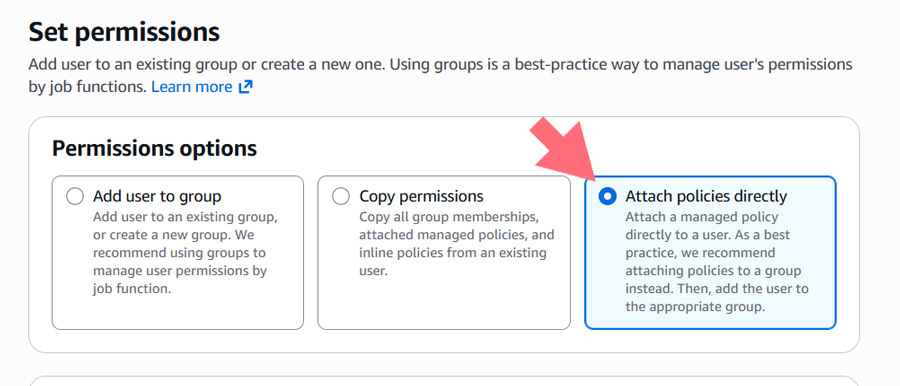
- Now it’s time to assign the appropriate permissions to your new IAM user. Among the options shown in the top row, select Attach policies directly.
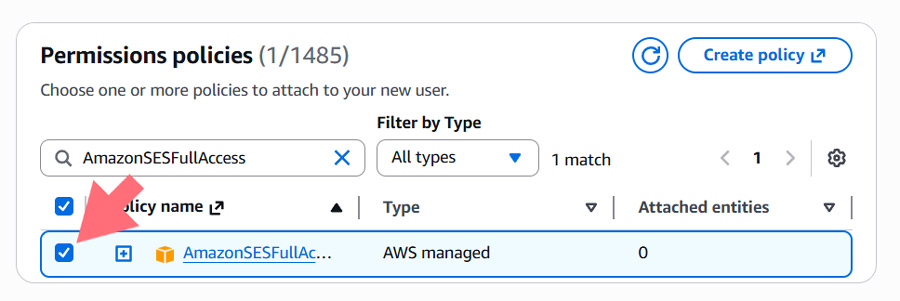
- In the search field, type AmazonSESFullAccess. A single matching result with the same name should appear in the list. Tick the checkbox next to it to assign this permission to your new user.
When you’re ready, click the Next button to proceed.
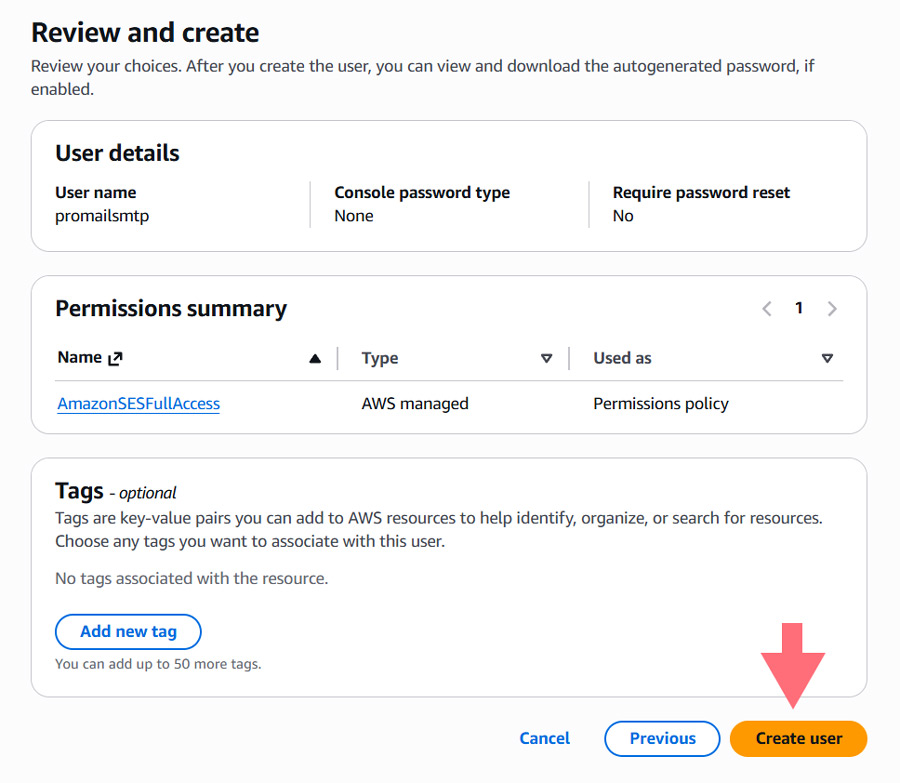
- You’ll now see a recap page with all the options selected for the new user. Verify that the details match what you intended, then press the Create user button to complete the process.
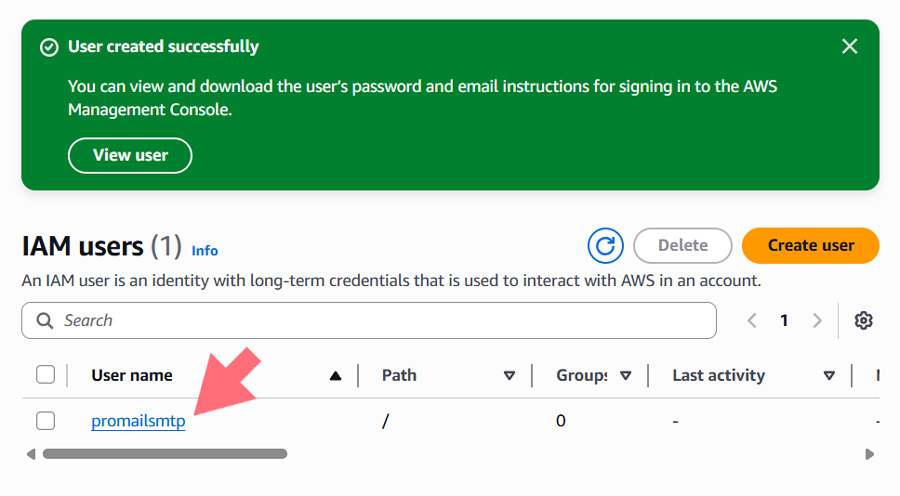
- Once the user has been created, AWS will display a confirmation message and redirect you back to the Users page automatically.
Creating Your Access Key
- From the Users dashboard, click on the username of the IAM user you just created to open its details.
- Among the tabs shown on the page, click on Security credentials to continue.
- Scroll down until you reach the Access keys section, then click the Create access key button.
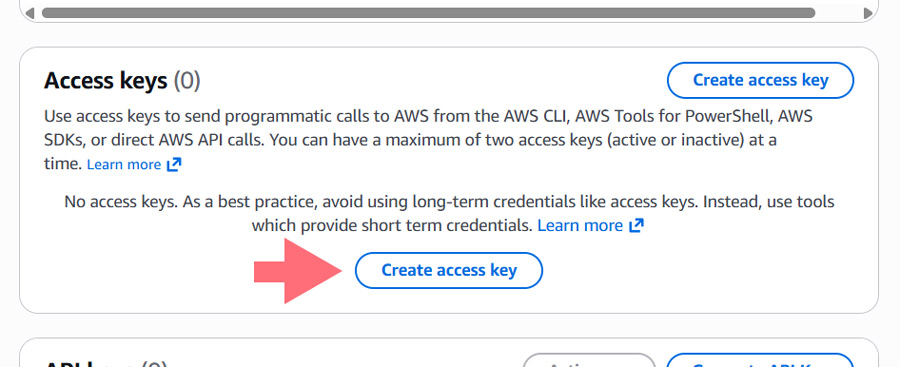
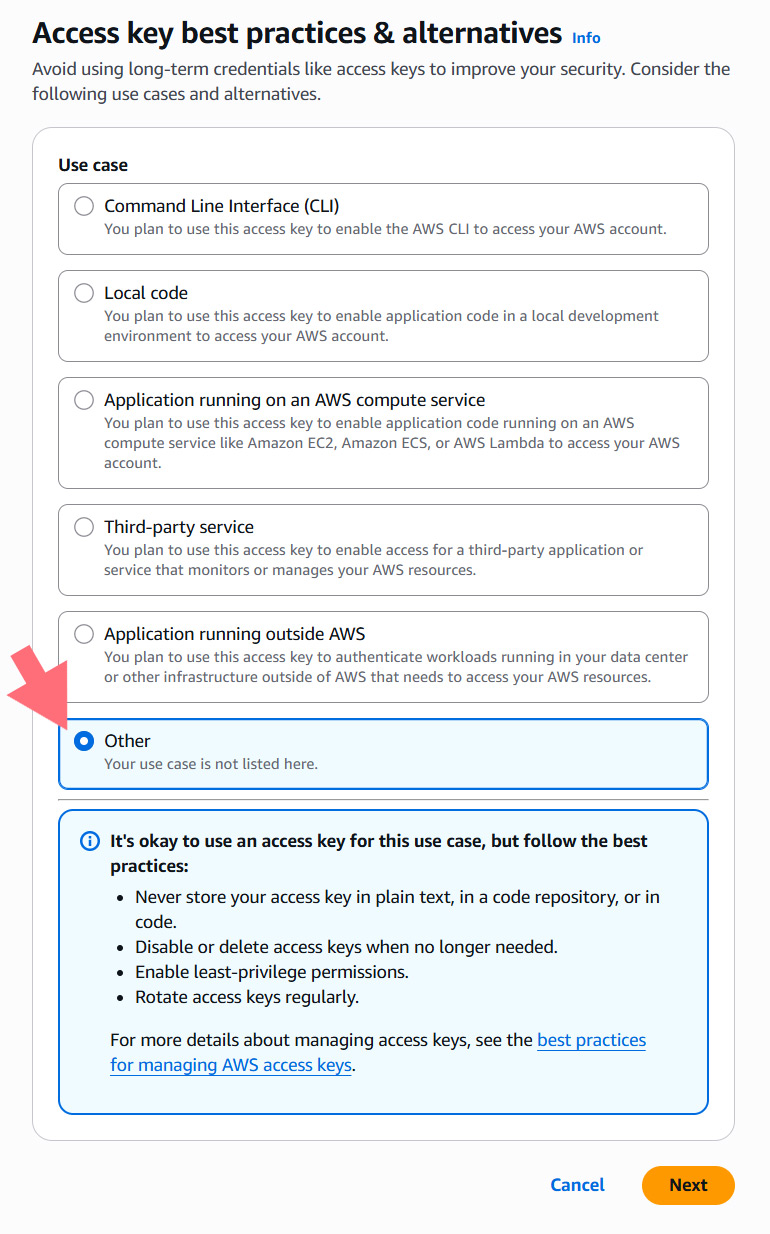
- In the Access key best practices & alternatives section, choose the Other option.
When everything looks good, press Next to proceed.
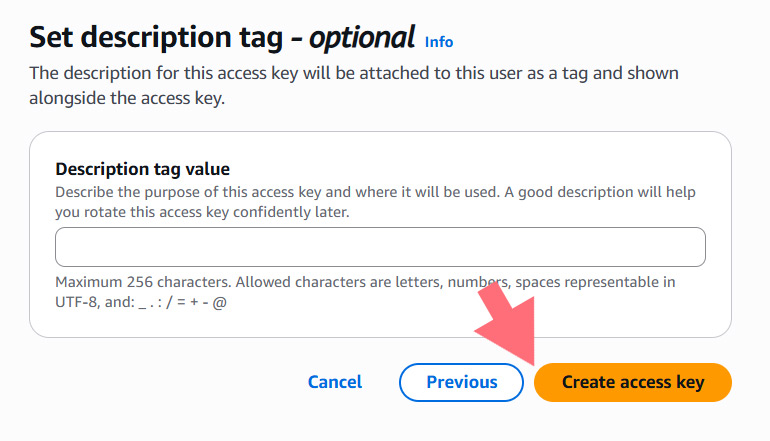
- The next page allows you to add an optional description tag — feel free to skip it and click Create access key to proceed.
- A success notification will appear, displaying your newly generated Access key ID and Secret access key. Take a moment to save both credentials in a secure location, as you’ll need them shortly to configure Pro Mail SMTP.
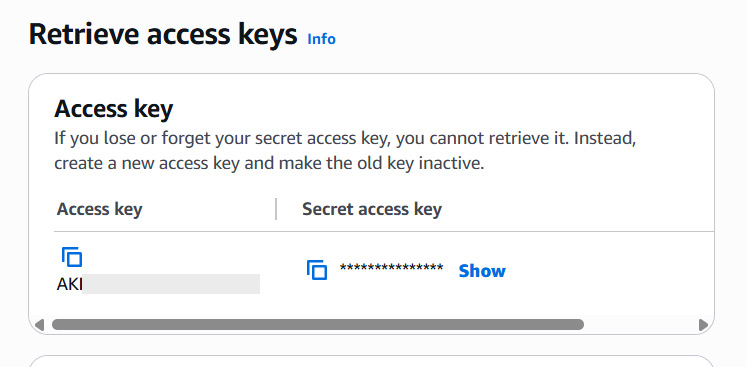
💡Important Note
After you navigate away from this page, the Access key ID and Secret access key cannot be retrieved again. Be sure to download the CSV file containing these details, or save them somewhere safe, before closing the window.
Feel free to keep this tab open for now — we’ll be coming back to these credentials in just a few steps.
Step 2: Switching AWS to Production Mode
Every Amazon SES account starts out in Sandbox Mode by default. This setup is intentionally limited: your monthly sending quota is low, and you can only send emails to recipients whose addresses have already been verified inside Amazon.
In the following section, we’ll guide you through moving your account from Sandbox Mode to Production Mode, so you can raise your sending quota and reach any recipient without restrictions.
To begin, open the Amazon Service Quotas dashboard.
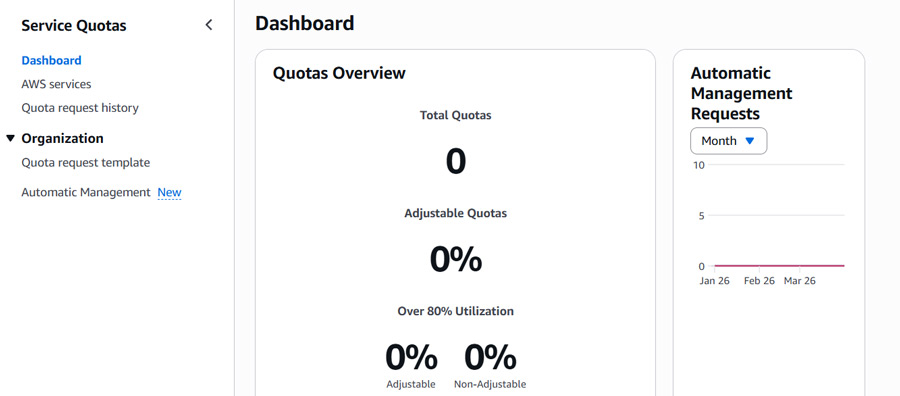
Selecting Your Region
Once inside the dashboard, open the Select a Region dropdown and locate your region. It’s important to pick the same region you chose during the initial AWS account setup — using a different one will prevent the integration from functioning correctly.
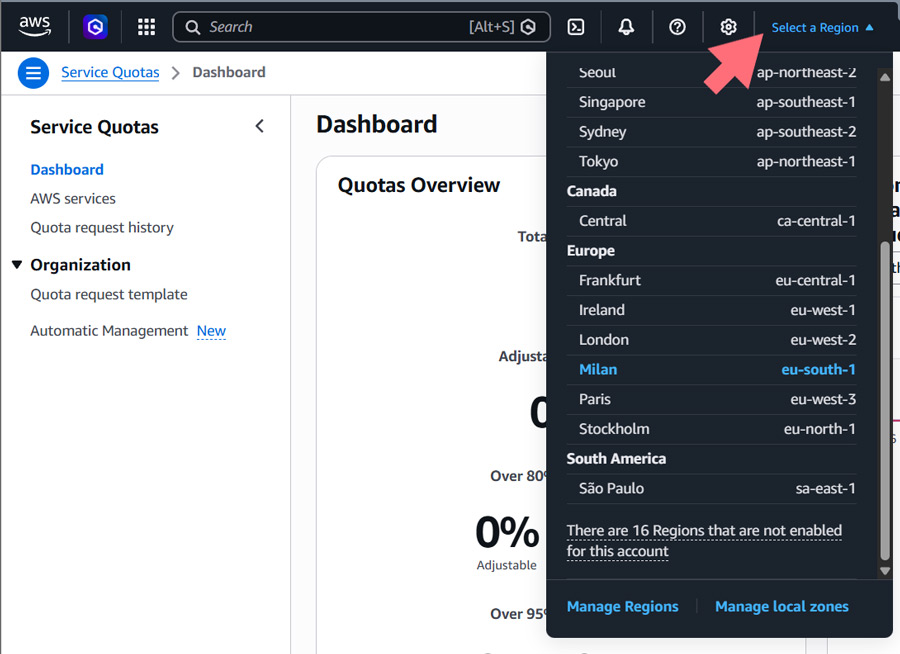
With your region now set, you’re ready to submit a request to raise your monthly email sending quota.
Requesting a Quota Increase
- To begin the request, locate the AWS services option in the sidebar menu and click on it.
- Use the search field to look up Amazon Simple Email Service.
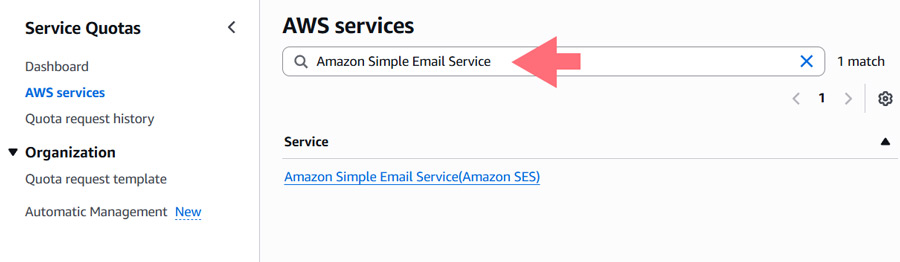
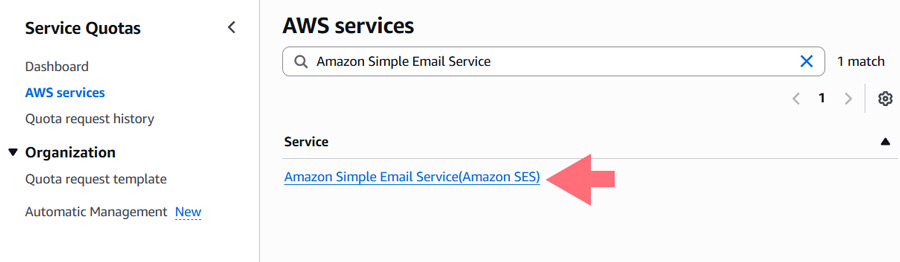
- Only one matching result will appear: Amazon Simple Email Service (Amazon SES). Click on it to continue.
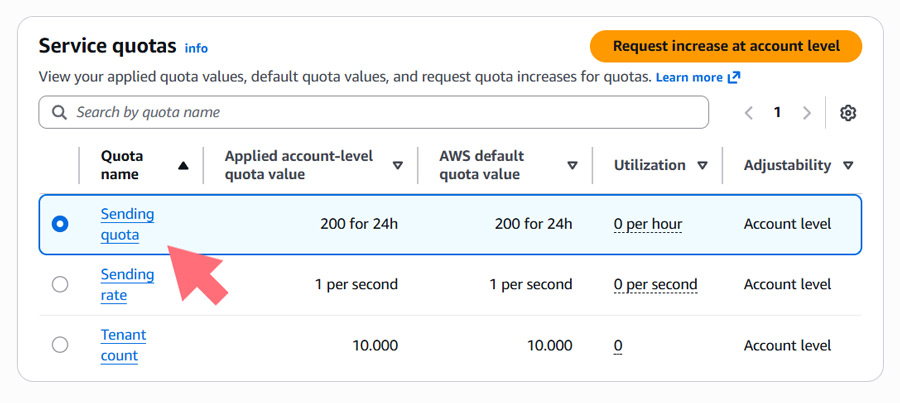
- The next page is where you’ll initiate the quota increase request. Start by ticking the option next to Sending quota.
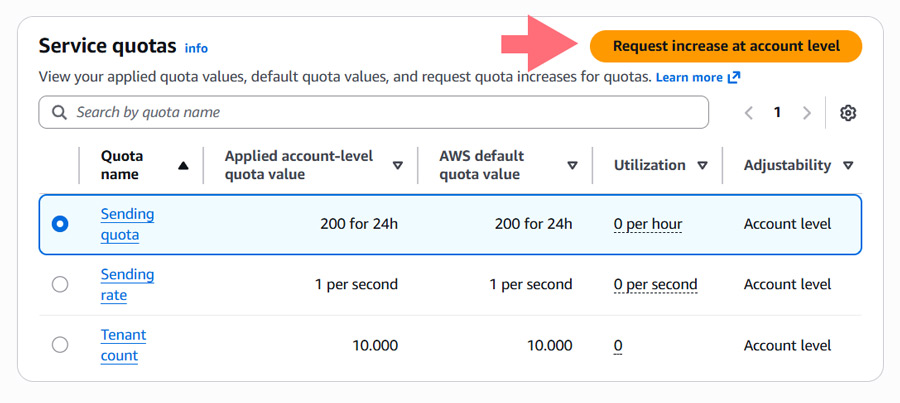
- Next, click on the Request quota increase button.
- A Case Classification form will then appear, which you’ll need to review and complete carefully. This step is critical: Amazon uses the information you provide to filter out potential spammers and confirm that your website will be sending emails for legitimate, non-abusive purposes.
- To submit your request, enter the daily sending limit you’d like to obtain in the Change quota value field. For demonstration purposes, we’ll set our requested quota to 500 emails per day.
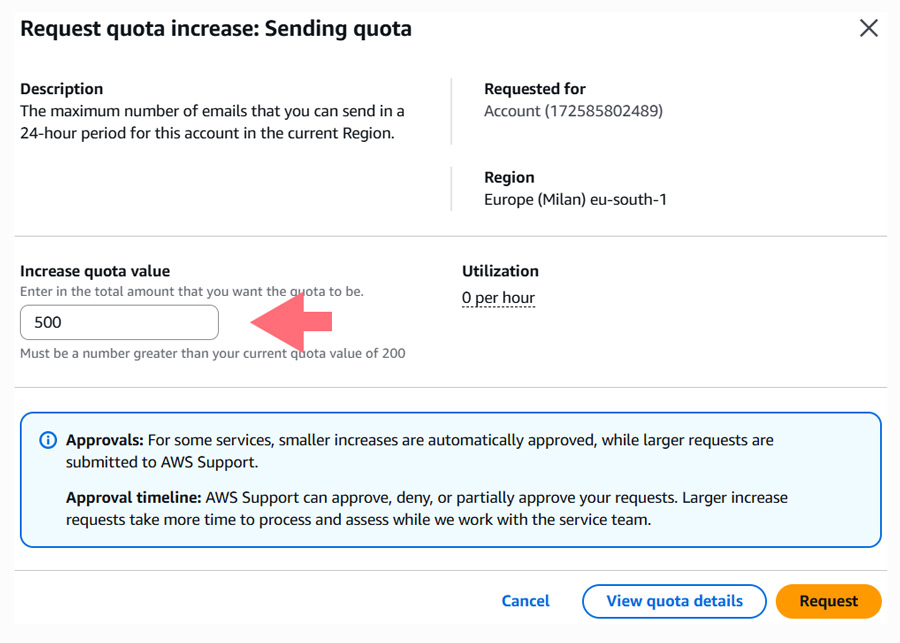
- After entering your desired quota, click the Request button to submit the form.
Immediately after submission, you should receive two emails from Amazon Web Services. Both will simply confirm that a new case has been created.
AWS will generally review requests and let you know the result within one business day. In the meantime, though, you can continue with the next setup steps.
Step 3: Configure Pro Mail SMTP.
Now that you have set up your Amazon SES account, it’s time to configure Pro Mail SMTP to use Amazon SES for sending emails. Follow these steps to complete the setup:
Install Pro Mail SMTP Plugin.
- Log in to Your WordPress Admin Area.
Access your WordPress dashboard. - Navigate to Plugin Installation.
Go to Plugins → Add New. - Search for Pro Mail SMTP.
In the search bar, type Pro Mail SMTP. - Install the Plugin.
Click on the Install Now button next to the plugin, and then activate it once the installation is complete. Alternatively, you can download Pro Mail SMTP directly from here.
Open the Plugin Settings.
- Access Pro Mail SMTP Settings.
Once activated, find Pro Mail SMTP in the left-hand menu and click on it to access the settings.
- Select Amazon SES as Your SMTP Provider.
Click on the Add Provider button.
From the list of available SMTP providers, select Amazon SES.
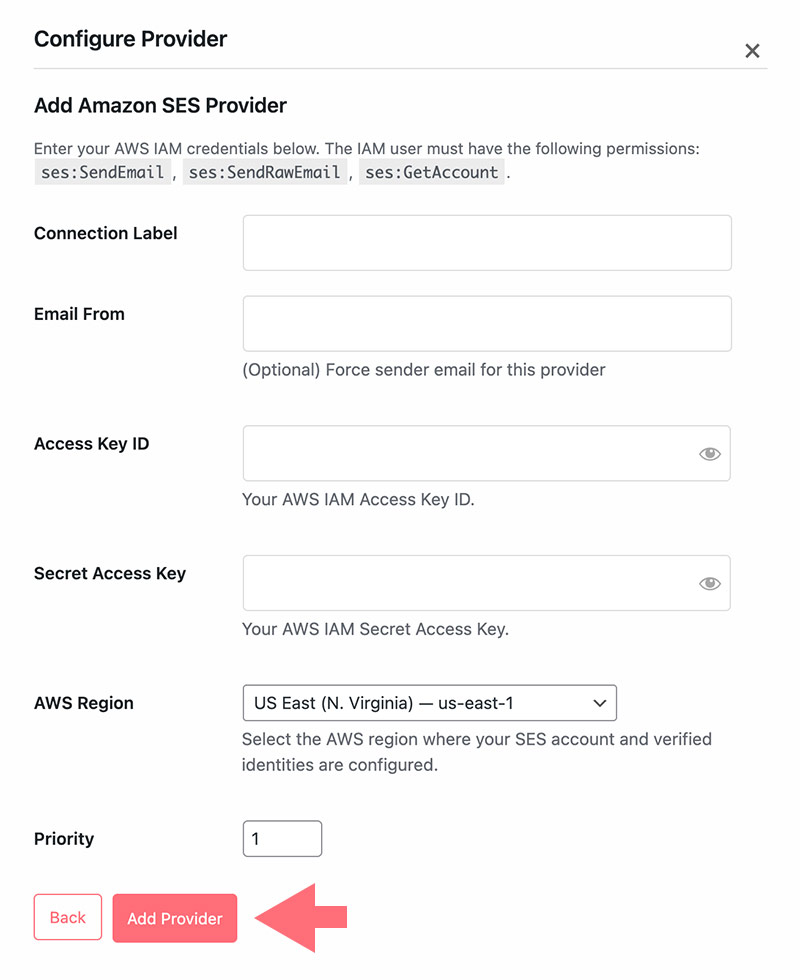
Enter SMTP Configuration Details.
- Connection Label.
Assign a unique name to this connection for easy identification (e.g., “Amazon SES Connection”). This is helpful when managing multiple SMTP setups. - Email From (optional).
Specify the email address you wish to use for sending emails (e.g., noreply@example.com). This address can override the global email settings for the selected provider. - Access Key ID.
Paste the AWS IAM Access Key ID you generated earlier into this field. This identifier is part of the credentials used to authenticate your connection with Amazon SES. - Secret Access Key.
Paste the AWS IAM Secret Access Key associated with the Access Key ID above. Together, these two values allow Pro Mail SMTP to securely authenticate and send emails through Amazon SES. - AWS Region.
Select the AWS region where your Amazon SES account and verified identities are configured. Choosing the wrong region is one of the most common causes of failed connections, so make sure it matches the region you used during the SES setup. - Priority.
Assign a priority number to this connection. Lower numbers indicate higher priority, which helps determine the order in which connections are used for sending emails.
Step 5: Save Your Settings and Run a Test.
Once you’ve entered all the required details, click Save Settings to apply the configuration.
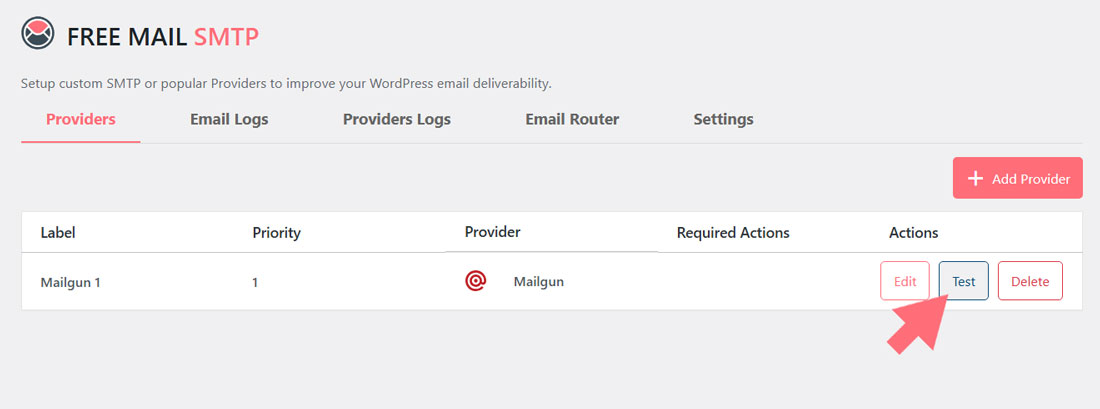
Next, find the Test button in the provider settings section of the Pro Mail SMTP plugin.
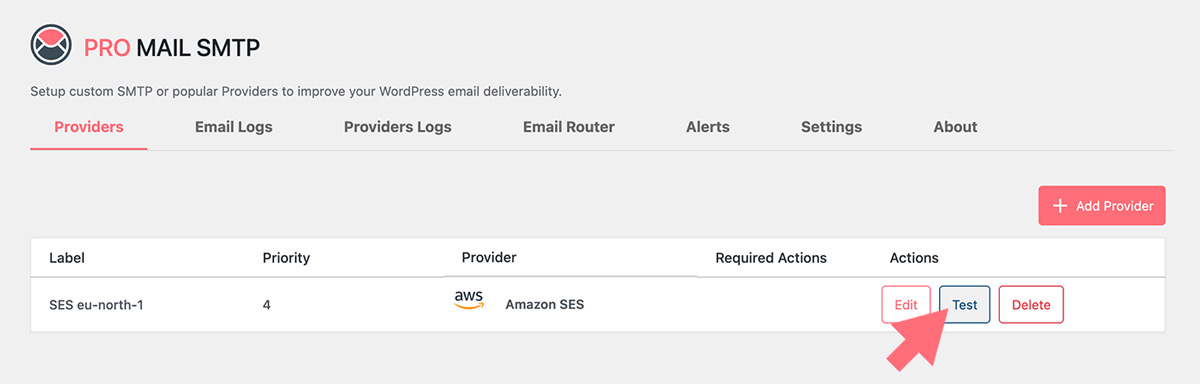
If everything works correctly, your integration with Amazon SES is complete!
FAQ — Frequently Asked Questions about Amazon SES Integration
How do I set up Amazon SES with WordPress using Pro Mail SMTP?
To connect Amazon SES to WordPress, install the Pro Mail SMTP plugin, create an AWS account, verify your sending domain in the SES console, generate SMTP credentials, and enter them into the plugin. Once configured, your WordPress emails will be sent through Amazon’s reliable infrastructure.
Is Amazon SES compatible with the Pro Mail SMTP plugin?
Yes, Amazon SES integrates seamlessly with Pro Mail SMTP. After verifying your domain and generating SMTP credentials, you can configure the plugin in just a few minutes to handle all your WordPress emails — from contact forms to WooCommerce notifications.
What are the SMTP settings for Amazon SES?
Amazon SES SMTP settings depend on the AWS region you choose. The general format is:
– Host: email-smtp..amazonaws.com (e.g. email-smtp.eu-west-1.amazonaws.com)
– Port: 587 (TLS) or 465 (SSL)
– Authentication: Required
– Username: SMTP username generated in the SES console
– Password: SMTP password generated in the SES console
Why should I use Amazon SES instead of WordPress’s default email function?
WordPress’s built-in wp_mail() function relies on PHP mail, which often results in emails being marked as spam or never delivered. Amazon SES uses authenticated SMTP with SPF and DKIM signing, ensuring your messages reach the inbox reliably and at a fraction of the cost of other providers.
Is there a free plan available for Amazon SES?
Yes. If you send emails from an Amazon EC2 instance or AWS Lambda function, you get 62,000 free emails per month. For other use cases, the cost is just $0.10 per 1,000 emails — making it one of the most affordable solutions available.
What is the Amazon SES sandbox and how do I exit it?
When you create a new AWS account, SES places it in sandbox mode, which limits you to 200 emails per day and only allows sending to verified addresses. To exit the sandbox, you need to submit a production access request from the SES console, providing details about your use case. Approval typically takes 24 hours or less.
How do I verify my domain in Amazon SES for better deliverability?
In the Amazon SES console, go to “Verified identities”, click “Create identity”, choose “Domain”, and enter your domain name. SES will provide a set of DNS records (DKIM CNAMEs and optionally a custom MAIL FROM domain) that you’ll need to add to your DNS provider. Once propagated, your domain will be verified and ready to send authenticated emails.
What should I enter in the “Email From” field in Pro Mail SMTP?
Always use an email address that belongs to a verified domain in Amazon SES (for example, info@yourdomain.com). Free addresses like Gmail or Yahoo will not work, as SES requires sender authentication for all outgoing emails.
Can I use Amazon SES with contact forms or WooCommerce emails?
Absolutely. Once configured, Amazon SES handles all WordPress-generated emails, including contact form submissions, WooCommerce order confirmations, password resets, and newsletter campaigns — with industry-leading deliverability.
How can I test if my Amazon SES configuration is working in WordPress?
After saving your SMTP settings in Pro Mail SMTP, use the built-in “Test Email” function. You’ll receive instant feedback on whether the connection is valid and your emails are being delivered correctly.
Is Amazon SES better than WordPress default email sending?
Yes. Amazon SES offers significantly better deliverability, scalability, and reliability than WordPress’s default wp_mail() function. With SPF and DKIM authentication, real-time bounce and complaint tracking, and AWS’s global infrastructure, it’s the recommended solution for any site that takes email seriously — from small blogs to high-volume eCommerce stores.